Table of Contents
Epasscard Documentation
This documentation will help you learn and understand the usability of the epasscard system. By Following this documentation you can learn how epasscard works and how to set it in a perfect way.
EpassCard System Compatibility
Using Android: EpassCard works smoothly on most Android devices and has been tested across a wide range of models. The app loads quickly, performs without buffering, and offers a stable user experience. Whether you’re creating passes or scanning QR codes, everything runs efficiently on Android.
Using iPhone: EpassCard is fully compatible with iPhone models from iPhone 7 up to the latest releases. The app performs reliably, offering smooth navigation and fast loading times. All major features, including pass creation and wallet integration, work seamlessly on supported iPhones.
Web Application: The EpassCard web application provides a powerful and flexible platform for creating and managing digital passes. It works on all modern browsers and gives you access to advanced customization options. Businesses often prefer the web version because it offers more control and scalability.
WordPress Plugin: EpassCard is also available as a WordPress plugin, allowing you to integrate digital pass creation directly into your website. This gives your visitors the ability to generate and use passes instantly. It’s a great way to expand your digital services and improve customer engagement.
Epasscard Setup Guide
You Have to follow this steps to make a pass smoothly.
Create an Account & Sign In:
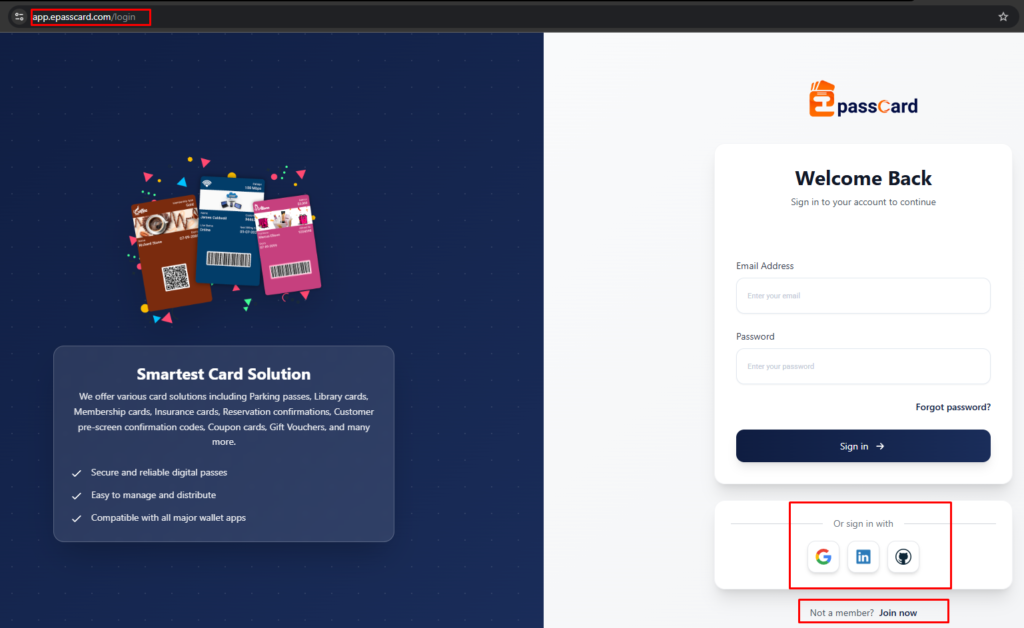
To get started, visit app.epasscard.com and create an account. You can sign up using your email or log in with Google, LinkedIn, or GitHub. Once logged in, you’ll gain access to your dashboard where all pass creation tools are available.
Pass Template Setup
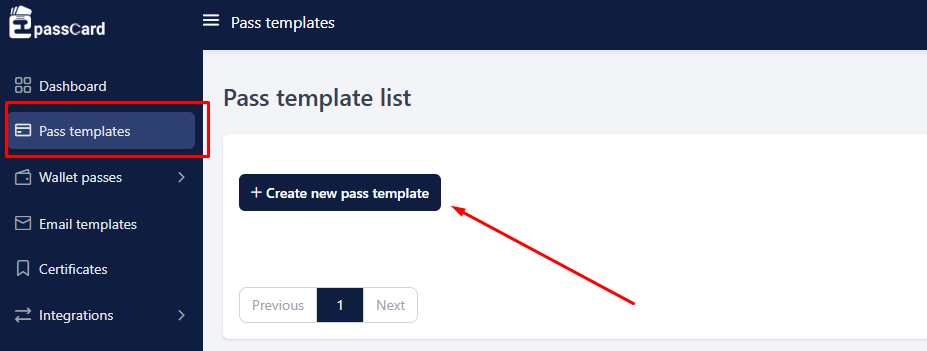
The first step is to create a pass template, which defines the layout and structure of your pass. You can choose a template type, name it, and add details like organization name and description. Free users can create up to 5 passes, while paid plans allow thousands more.
Select Pass Template
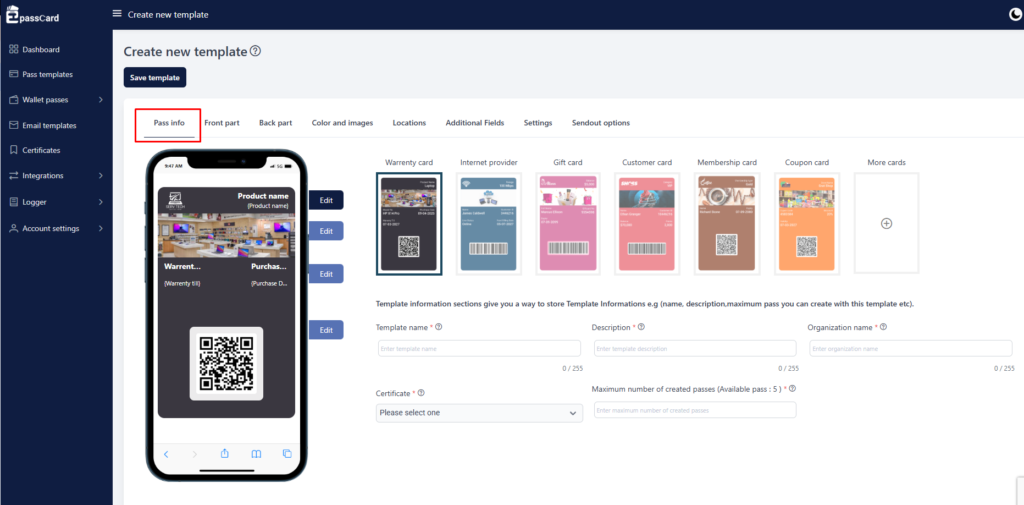
Choose a template from the available list and fill in the basic information. This includes the template name, description, and organization details. The template acts as the blueprint for all passes created under it.
Edit Front Part
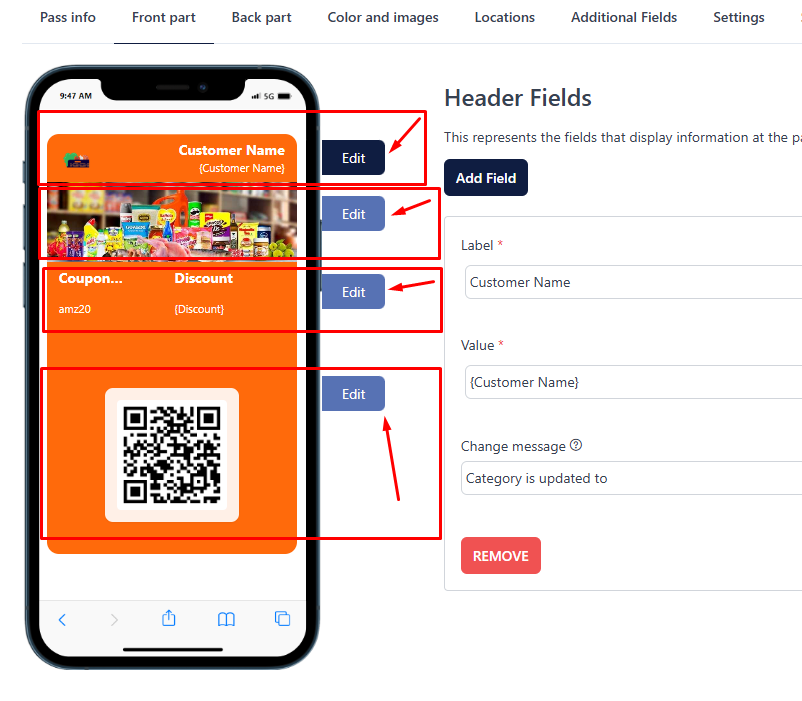
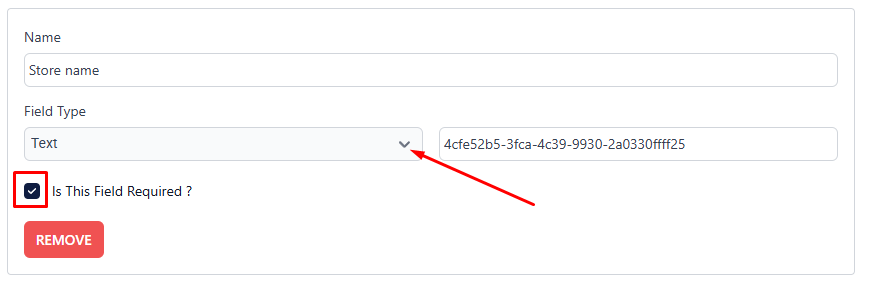
The front of the pass includes sections like the header, banner image, bottom text, and barcode. You can add fields, upload logos, and choose barcode formats. Each field can be customized or marked as required depending on your needs on .
Edit Back Part
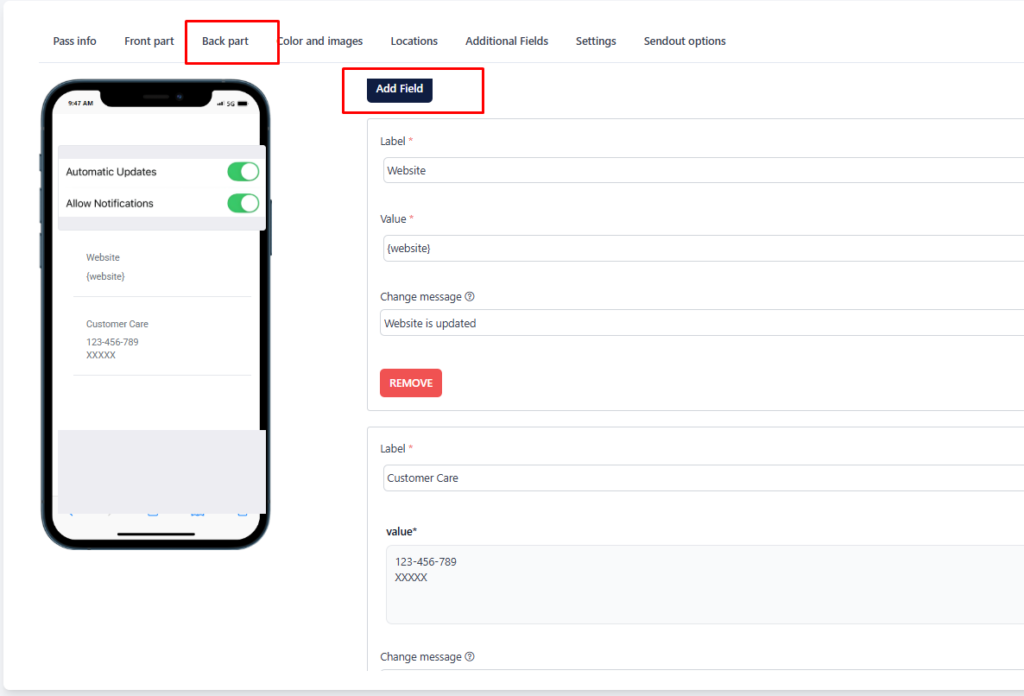
The back of the pass is where you add additional information such as company details, customer support numbers, or instructions. This section helps users access important information quickly. You can add multiple fields to make the pass more informative.
Colors & Images Setup
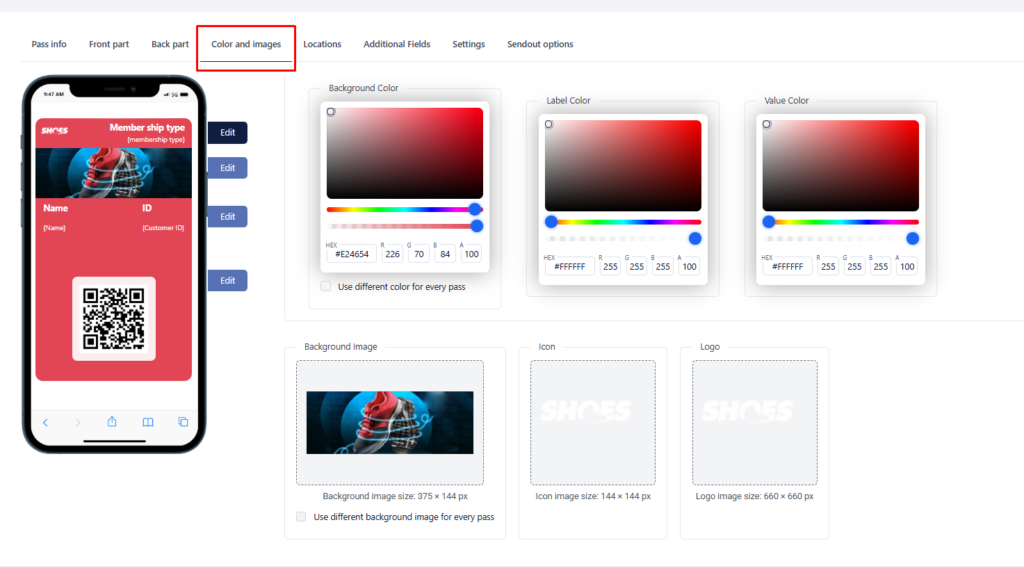
Customize the appearance of your pass by selecting colors and uploading images. This helps match your brand identity and create a professional look. Once satisfied, save the template to use it for generating passes.
Create a Pass
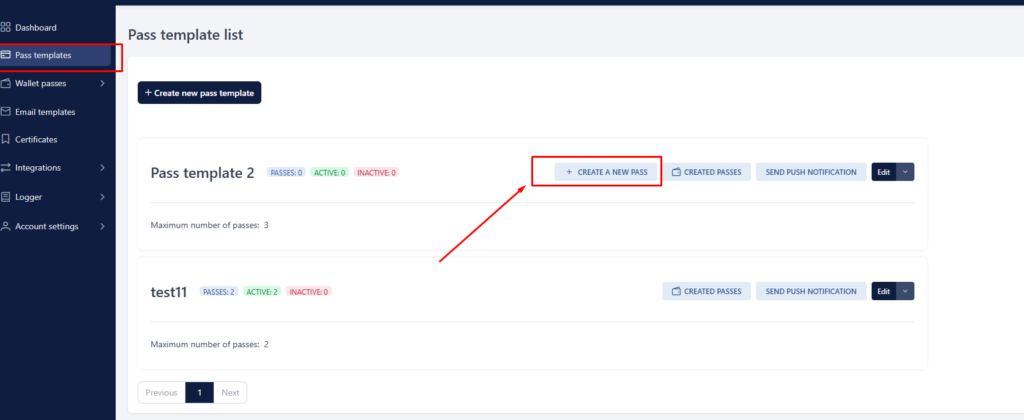
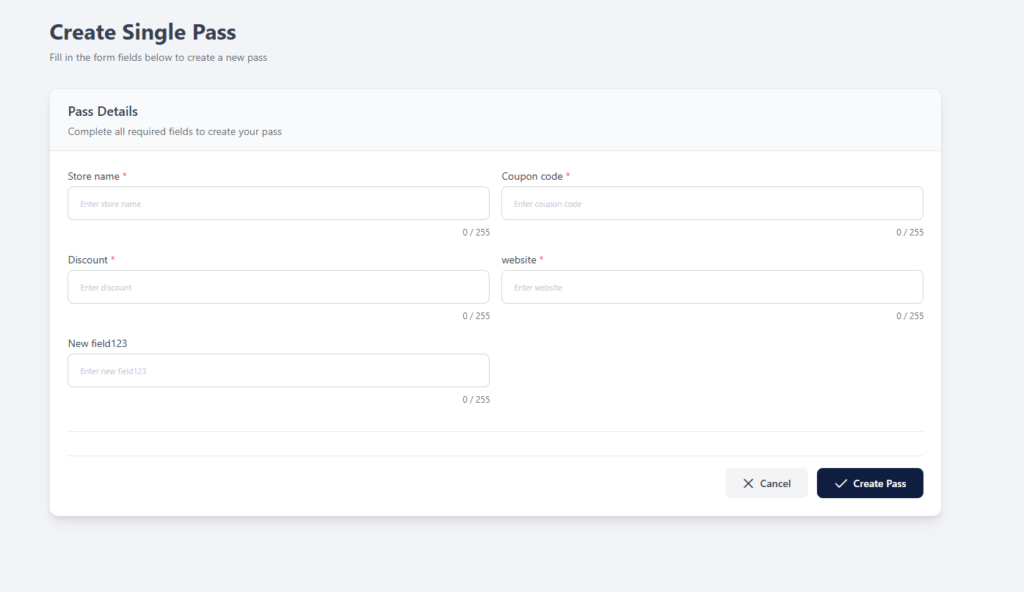
After setting up your template, you can generate a pass by filling out the required form. Each pass is created instantly and can be viewed under the template or in the “Created Passes” section. This makes it easy to manage and track all your digital passes.

Share a Pass
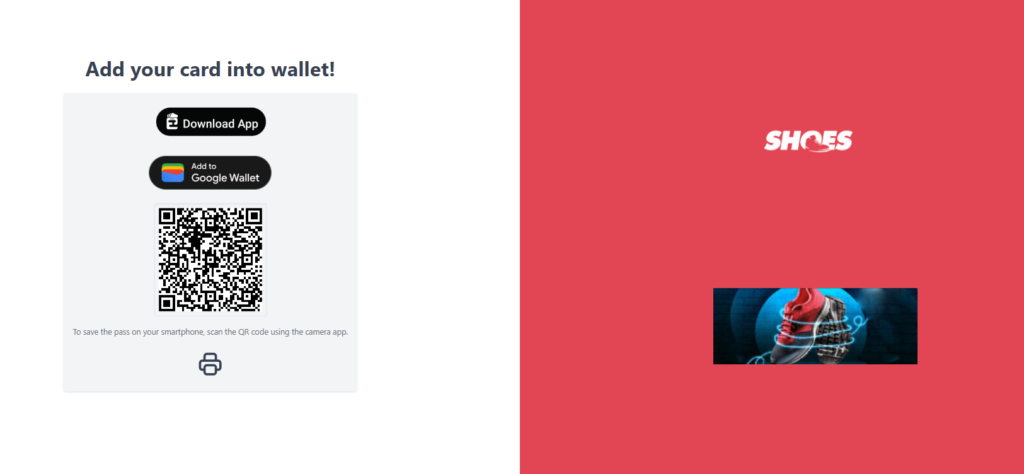
You can share passes through Google Wallet, Apple Wallet, or the EpassCard app. Simply open the pass, view it, and scan the QR code to add it to your wallet. You can also verify whether the pass has been successfully added.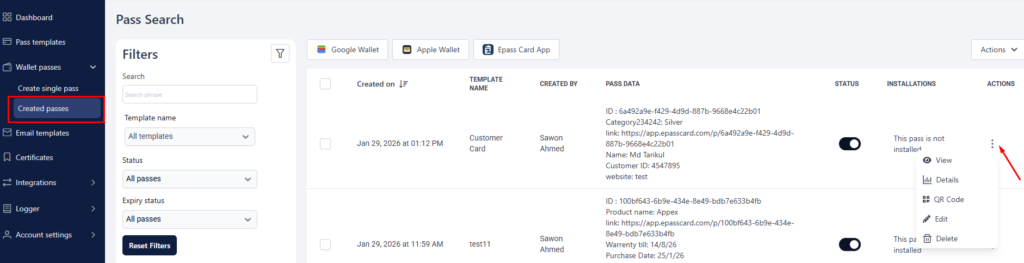
Advanced Settings
Location Notifications
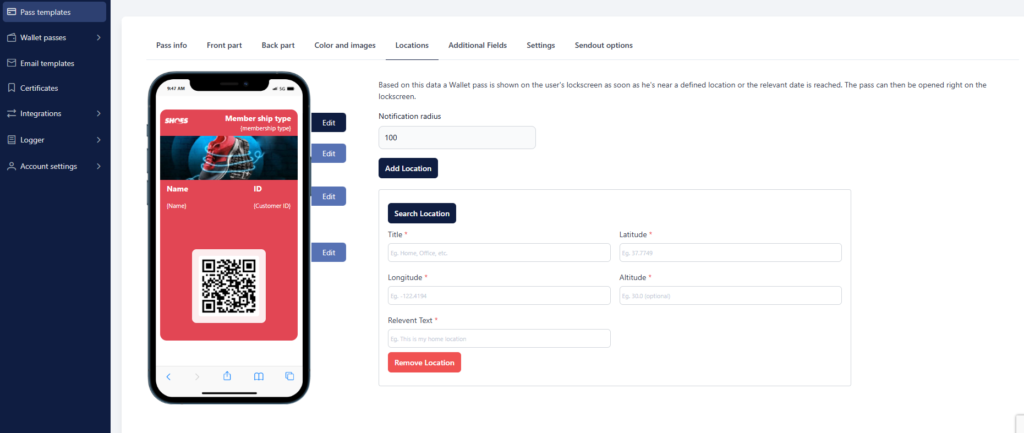
Location-based notifications allow you to send alerts when users enter a specific area. This is useful for promotions, membership benefits, or store visits. It helps businesses engage customers at the right moment.
Expire Card
You can set expiration rules for passes based on fixed dates or dynamic conditions. This ensures that passes remain valid only for the intended period. It’s ideal for events, memberships, or time-sensitive offers.
Rechargeable
Rechargeable passes allow users to top up their balance when needed. This is useful for gift cards, prepaid services, or loyalty programs. It adds flexibility and enhances the user experience.
Sendout Options
EpassCard allows you to send passes through email, SMS, or push notifications. This ensures your customers receive their passes instantly and conveniently. You can choose the method that best fits your workflow.
Do you find this documentation helpful?

Transforming business operations worldwide. Epasscard delivers the digital solutions modern organizations need to boost efficiency, reduce costs, and stay competitive.


Resources
Explore
Subscribe Now
Subscribe Now to get latest update and promotional offers to grab the best deal.
Connect
Concern of WebCartisan LLC